File Browser
The File Browser tab is where you review your photos, select photos for editing, or perform batch-editing operations. It consists of the following parts:
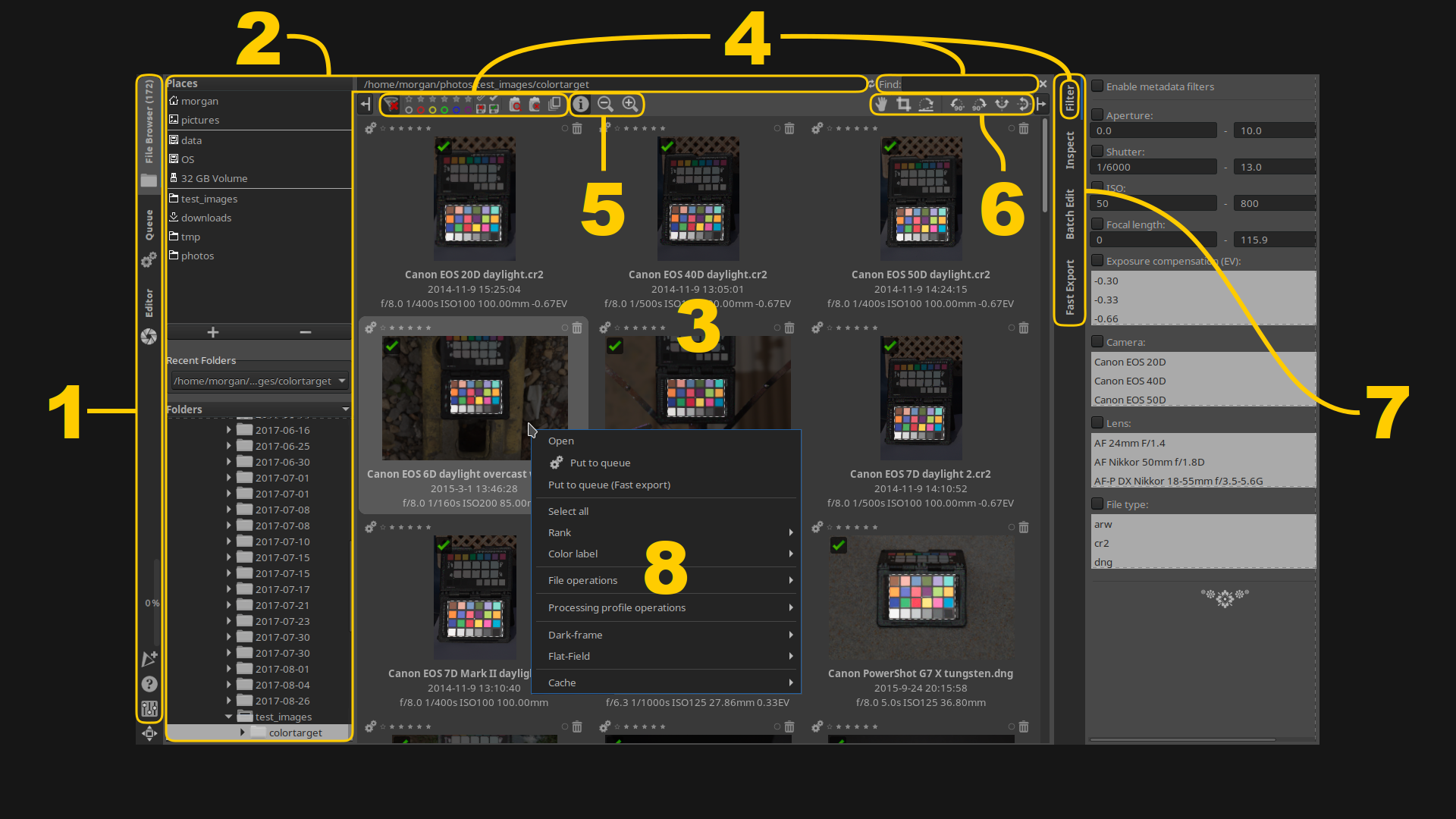
- The left panel
- The “Places” panel on the top links to your home folder, USB card readers, the system’s default “photos” folder, or custom folders.
- Below this is a standard tree-type file browser that you can use to navigate to folders containing your photos. RawTherapee does not complicate things by requiring you to import photos into databases as some other software do.
- The right panel
- The “Filter” tab lets you show only photos which match the parameters you specify.
- The “Inspect” tab shows a preview at a fixed scale of 100% of the image your mouse cursor is hovering over, which is either the largest JPEG image embedded in the raw file, or the image itself when hovering over non-raw images.
- The “Batch Edit” tab allows you to apply tool settings to the selected image or images. This allows you to quickly enable some tool in many photos at once.
- The “Fast Export” tab lets you quickly process the selected images by bypassing certain tools even if they are enabled in the processing profiles of those images, so that you can get a quick preview of the raw files for example to delete the shots which are blurry or out of focus.
- The central panel shows thumbnails of the folder currently selected.
You can hide the individual panels using the “Show/Hide the left panel
 ”
and “Show/Hide the right panel
”
and “Show/Hide the right panel
 ”
buttons - see the Keyboard Shortcuts
page.
”
buttons - see the Keyboard Shortcuts
page.
When you open a folder, RawTherapee will generate thumbnails of the photos in that folder in the central panel. The first time you open a folder full of raw photo files, RawTherapee will read each file and create a thumbnail based on the embedded JPEG image (every raw photo has an embedded JPEG image, sometimes even a few of various sizes). This can take some time on folders with hundreds of photos, but it only happens the first time you open that folder. All subsequent times you go to a previously opened folder, RawTherapee will read the thumbnails from its cache if they exist, and this will be much faster than the first time you opened that folder.
The JPEG image embedded in each raw photo is identical to the out-of-camera JPEG image you would get if you shot in JPEG mode (or in “RAW+JPEG” mode). This JPEG is not representative of the actual raw data in that photo, because your camera applies all kinds of tweaks to the JPEG image, such as increasing the exposure a bit, increasing saturation, contrast, sharpening, etc.
After you start editing a photo, its thumbnail in the File Browser tab is replaced with what you see in the preview in the Editor tab, and every tweak you make is reflected in the thumbnail. The thumbnails are stored in the cache for quick future access. If you want to revert to the embedded JPEG image as the thumbnail, then right-click on the thumbnail (or selection of thumbnails) and select “Processing Profile Operations > Clear”.
Use the zoom icons in the File Browser’s top toolbar to make the thumbnails smaller or larger. Each thumbnail uses some memory (RAM), so it is advisable not to set the thumbnail size too high ("Preferences > File Browser > Maximal Thumbnail Height").
You can filter the visible photos by using the buttons in the File Browser’s or Filmstrip’s top toolbar, as well as by using the “Find” box or the “Filter” tab. Possible uses:
- Show only unedited photos,
- Show only photos bracketed +2EV,
- Show only photos ranked as 5 star,
- Show only photos with a specific ISO range,
- Show only photos with a NEF extension.
Rating
RawTherapee allows you to rank images between 0 and 5 stars. RawTherapee 5.7 introduced support for reading the rating information stored within the image’s metadata, e.g. as set by your camera or by other software, and showing it through its star rank system.
Metadata tags used for conveying the rating have evolved over the years, and RawTherapee prioritizes them in the following ascending order:
- Exif
rating - XMP
rating - PP3
rank
That is, if an image has an Exif rating tag with value 1 and an
embedded XMP rating tag with value 2, then RawTherapee will show 2
stars. If you then rank it 3 stars in RawTherapee, the 3-star rating is
shown in RawTherapee’s File Browser and Filmstrip.
Note that RawTherapee’s star ranking does not get exported to saved
images. That is, if you saved the image from the above example, the
saved file would contain Exif:rating=1 and XMP:rating=2 if you set
“metadata copy mode” to “copy unchanged” - it would not reflect the
3-star rank anywhere. Furthermore, if you set “metadata copy mode” to
“apply modifications”, the saved file would only contain
Exif:rating=1, as editing XMP is unsupported so it gets stripped.
Batch Adjustments - Sync
Deleting Files
As RawTherapee is a cross-platform program, it has its own trash bin, independent from your system one if you have a system one.
Using the Trash Bin
To move files to the trash bin, either use the “Move to trash” button
 in the top-right corner
of each thumbnail, or right-click on a selection of files and choose
“File operations > Move to trash”. These files are then marked as being
in the trash bin, but they are not deleted from your hard drive.
in the top-right corner
of each thumbnail, or right-click on a selection of files and choose
“File operations > Move to trash”. These files are then marked as being
in the trash bin, but they are not deleted from your hard drive.
- To hide all files which are marked as being in the trash bin, click
the “Show only non-deleted images” button
 in the top toolbar.
 - To see the contents of the trash bin, click the “Show contents of
trash” button
 .
. - While you are viewing the contents of the trash bin a new “Permanently
delete the files from trash” button
appears to the left of
the thumbnails - use it to delete all trashed files from your hard
drive.
- Click on the “Clear all filters” button
 to
return to the default view.
to
return to the default view.
Deleting From the Hard Drive
To delete files from your hard drive without using the trash bin, just right-click on a file or on a selection of files and choose “File operations > Delete” or “Delete with output from queue”. Both options delete the selected photo and its sidecar file from your hard drive, but “Delete with output from queue” also deletes the saved image whose filename matches the template which you currently have set in the Queue tab, in the “Use template:” field.