Framing
The framing tool can be used to add simple borders to the exported image. It can also be used to pad the image to specific dimensions (e.g. for uploading to social media).
As of writing, the framing tool’s changes are not visible in the editor preview. The result is only visible after exporting. This will be fixed in a future release of RawTherapee.
Parameters
There are three groups of parameters for framing:
- Framing method
- Border sizing
- Border color
Framing Method
The framing method controls how the framed output image is sized.
Standard
Add a border around the image. The image size is not restricted and no adjustments are made to Resize parameters.
Bounding Box
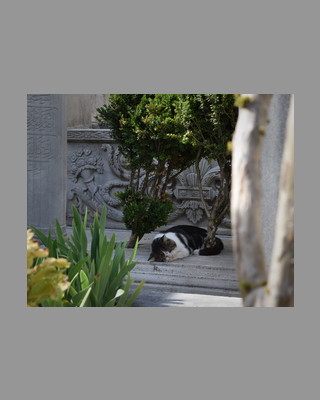
Add a border around the image. If the framed dimensions (i.e. including image and borders) exceeds the bounding box, the image (measured including borders) will be shrunk to fit the bounding box.
- Framing Method: Bounding Box (500x400) (4:5 Portrait)
- Sizing: Relative @ Auto 10%
- Resize Dimensions: 500x400
- Adjusted Resize Dimensions: 267x213
- Output Dimensions: 320x400
Fixed Frame
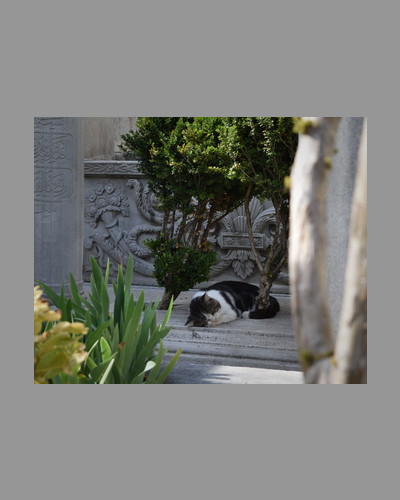
Fills a fixed-size frame with the border and places the image in the center of the frame. The image may be shrunk to fit the fixed frame dimensions and any border sizing requirements.
- Framing Method: Fixed Frame (400x500)
- Sizing: Relative @ Auto 10%
- Resize Dimensions: 500x400
- Adjusted Dimensions: 333x267
- Output Dimensions: 400x500
Additional Framing Method Parameters
Depending on the selected method, there are additional parameters available.
Aspect Ratio
Specify the aspect ratio of the frame in Standard and Bounding Box framing methods. If the border sizing constraint is too small to meet the aspect ratio (i.e image would be cut off), then the minimum borders needed to meet the aspect ratio is used. The aspect ratio of the post-resize image can be used by selecting the “As Image” option.
Orientation
Specify the orientation of the frame aspect ratio. The orientation of the post-resize image can be used by selecting the “As Image” option.
Framed Width/Height
Specify the bounding box of the frame in pixels for the Bounding Box framing method.
Specify the fixed frame dimensions in pixels for the Fixed Frame method.
Allow Upscaling to Frame
In the Fixed Frame and Bounding Box framing methods, if the image is smaller than the maximum allowed size, upscale the image to its max size.
Border Sizing
There are three methods for computing the size of the frame border.
Relative
Specify the border size based on a percentage of the selected edge. The scaling ratio is applied to both edge dimensions.
Basis
- Auto
- Choose whichever side is the limiting side for small border sizes based on aspect ratios.
- Width/Height
- Choose the width/height as the reference length.
- Long/Short Edge
- Choose the longer/shorter edge as the reference length.
If the basis side border is too small for the requested aspect ratio, the minimum possible value will be used.
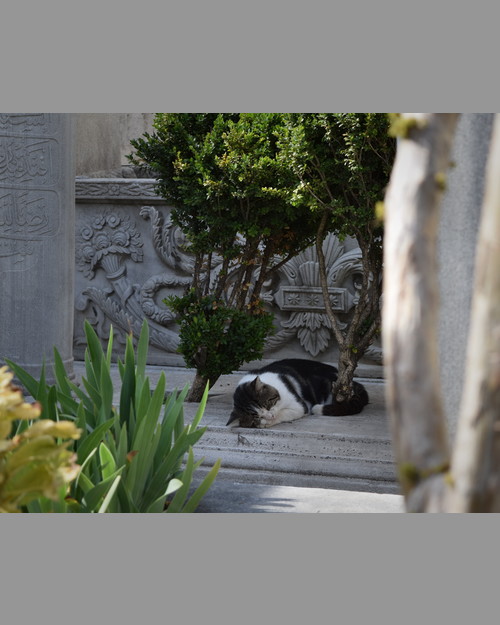
- Framing Method: Standard (4:5 Portrait)
- Sizing: Relative @ Height 10%
- Resize Dimensions: 500x400
- Output Dimensions: 500x625
Limit Minimum Size
If enabled, ensures a minimum pixel border size for horizontal/vertical borders as specified.
Uniform Relative
Adds a uniform border that is the same size horizontally and vertically. The minimum width and height are automatically updated to match each other.
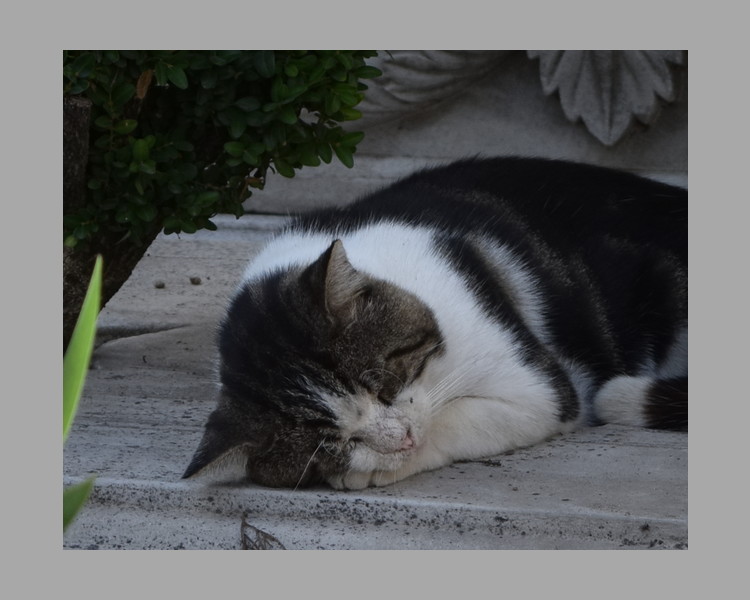
The following images shows the difference between Relative and Uniform Relative sizing.
- Framing Method: Standard
- Sizing: Relative @ Auto 10%
- Resize Dimensions: 625x500
- Output Dimensions: 750x600
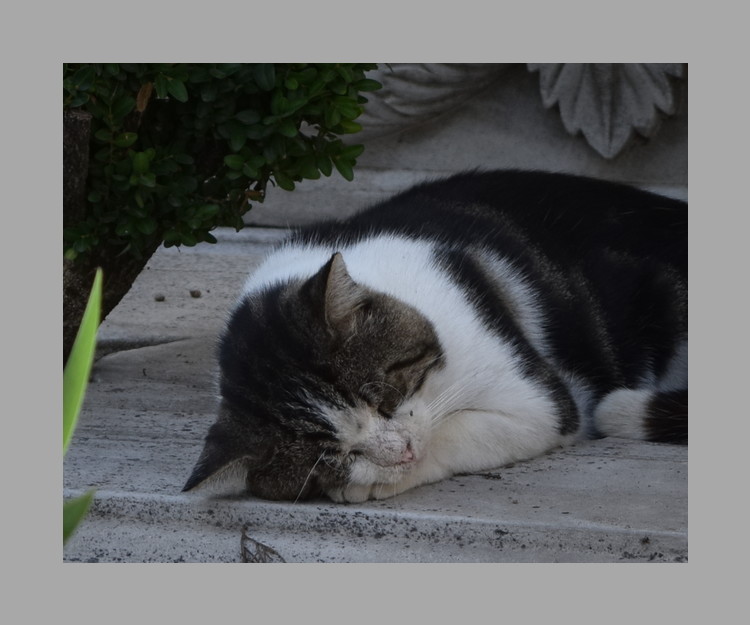
- Framing Method: Standard
- Sizing: Uniform Relative @ Auto 10%
- Resize Dimensions: 625x500
- Output Dimensions: 750x625
Absolute
Specify the horizontal/vertical border size in pixels. The total impact on exported image size is 2x border size.
- Framing Method: Standard
- Sizing: Absolute @ W=100 H=200
- Resize Dimensions: 500x400
- Output Dimensions: 700x800
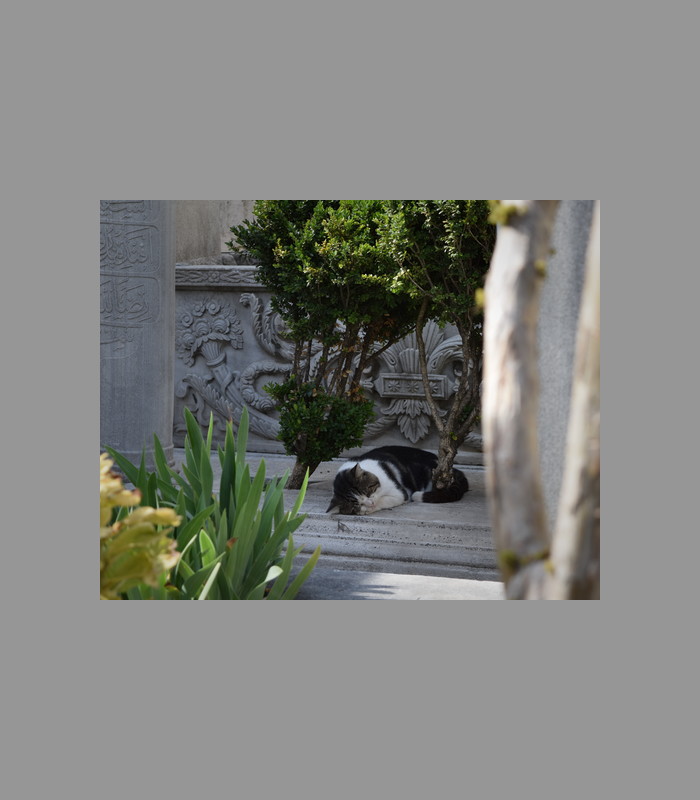
The aspect ratio and orientation options are ignored in this mode.
Limitations
The framing tool shares resizing limitations with the Resize tool.
- Downscaling limit is 32x32 px
- Occurs if the border size requirements are too high
- If the crop size is under 32x32, no downscaling is performed even if needed to fit the frame.
- Upscaling limit is 16x crop size
Below is an example of what happens when the downscaling limit is reached.
- Framing Method: Fixed Frame (80x100)
- Sizing: Absolute @ W=100 H=200
- Resize Dimensions: 500x400
- Adjusted Resize Dimensions: 40x32
- Output Dimensions: 80x100
Processing Pipeline
If framing requires resizing the image, the Resize tool’s parameters will be adjusted during processing. This prevents data loss from multiple resizing operations. Similarly, post-resize sharpening will only be applied to the adjusted image once.
Framing borders are drawn after the image is in the output colorspace.