How to convert raw formats to DNG
TOC
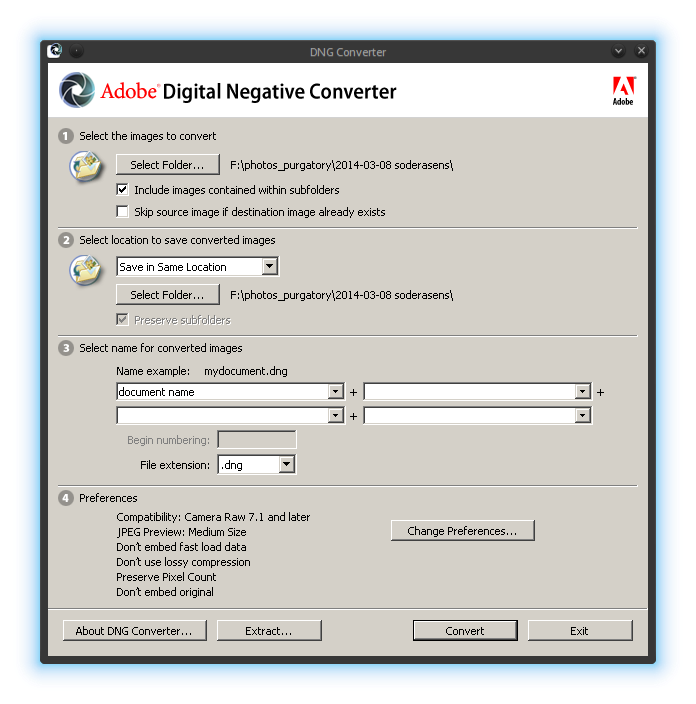
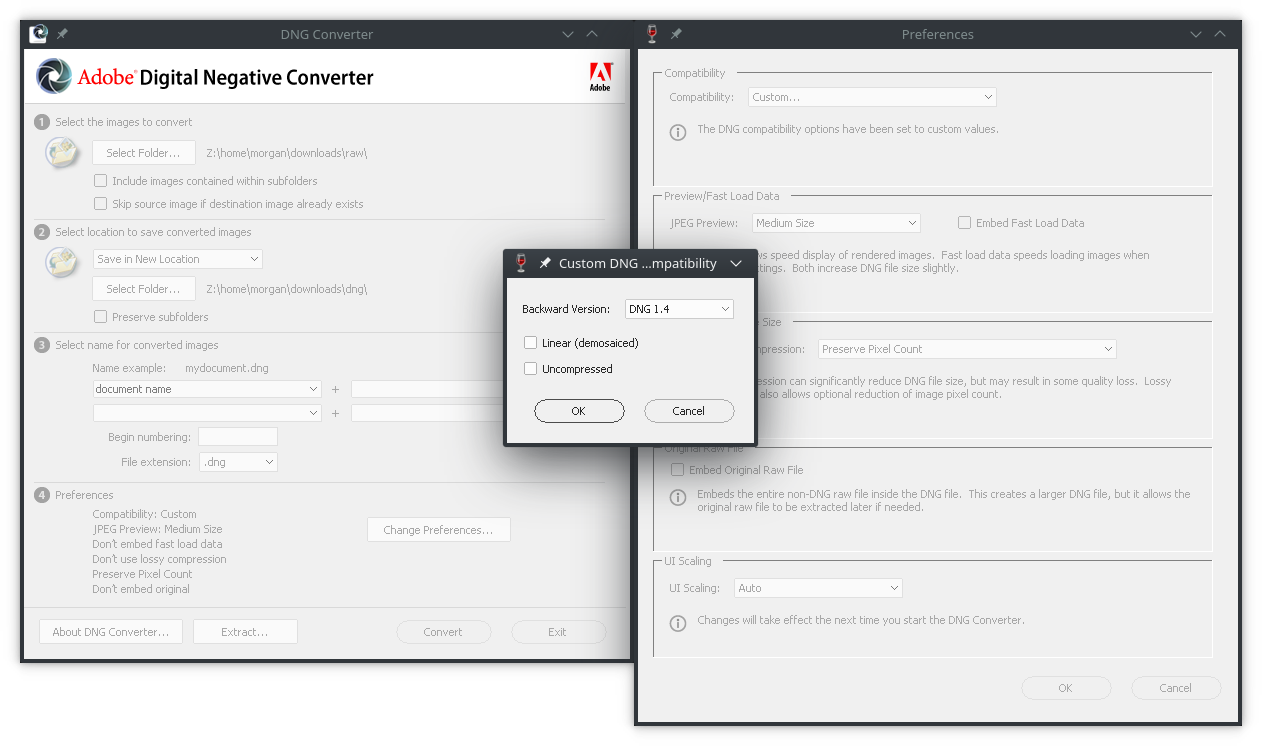
Digital photography cameras can most often save your images in the JPEG format, as well as dump the raw values from each of the millions of photosites which make up a sensor and store them, along with some metadata, in a proprietary raw format. Some cameras also let you choose DNG (Digital Negative) as the raw format, which is an open, lossless format developed by Adobe. Unlike JPEG images, which are already “developed”, these raw files (both proprietary and DNG) contain raw data (ergo the name “raw file” - do not capitalize it, it is not an acronym!) which must first be processed before an image is obtained.
There are numerous benefits in converting your raw files to the DNG format:
- It has universal support. You may be able to use your DNG images in programs which do not have support for your non-DNG raw format.
- It is not a dead format - it is constantly maintained.
- Adobe’s DNG Converter includes color matrices and white levels in the converted DNG files - these are usually not present in non-DNG files, and Adobe’s ones are often more accurate than those from dcraw. This leads to more accurate color and lowers the chance of color casts in clipped areas.
- DNG files are often smaller than your original raw files due to better lossless compression. The camera software is limited by its hardware - it must write the raw file as quickly as possible and not draw too much current, so compression is optimized for speed, not for file size. Computer software does not have this limitation.
- Even if your camera supports shooting straight to DNG, your camera’s implementation of DNG is likely outdated. In some cases it may be warranted to re-convert your old DNGs to a newer DNG specification using the newest version of Adobe’s DNG Converter. Possible reasons could be that the newer color matrices might be more accurate, lossless compression might be improved, improved support for defective pixel marking, inclusion of new opcodes, injection of new useful metadata tags, etc.
If you do convert your raw files to DNG, you should first test a few sample DNG files to make sure everything in your workflow still functions correctly before deleting the source files. Having said that, issues with DNG are very rare, unlike the FUD surrounding it which is in no hurry of dying down.
Adobe’s DNG Converter is not the only program that converts raw files to DNG. There are DNGLab and the digiKam/kipi-plugins DNG Image Converter (which uses LibRaw and libkdcraw). Note that these converters may use color matrices different to those from Adobe DNG Converter.
Get the latest version of Adobe DNG Converter here:
- Download Adobe DNG Converter (get the build for Windows if you’re using Linux - installation is explained below).
Run it and you’re done.
Unsupported sensors
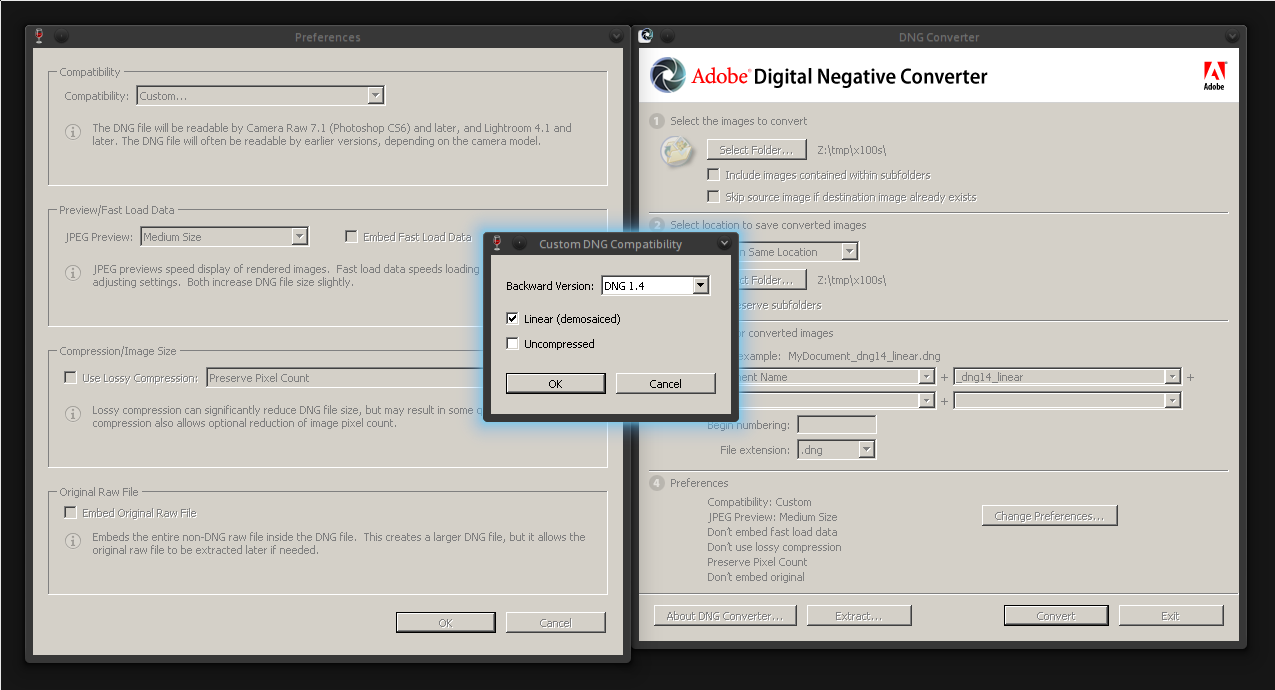
The DNG format can contain real raw data, but it can also contain demosaiced images. These demosaiced images are no longer really raw - they have been pre-cooked. While this is generally undesirable, there are situations where we can take advantage of this possibility. Some cameras have sensors with color filter array layouts and sensor pixel layouts unsupported by RawTherapee. Though you cannot directly process these raw files in RawTherapee, you can convert them to demosaiced DNG files using the Adobe DNG Converter. As these demosaiced DNG files are no longer truly raw, do not delete your original raw files! This procedure is merely a workaround.
To convert raw files not currently supported by RawTherapee to demosaiced DNG files, use the following settings:
- “Custom” compatibility mode using “DNG 1.4”
- “Linear (demosaiced)” must be ticked.
The resulting DNG files may end up being larger than the input files - as an example, an input RAF file resulted in a DNG file 142% larger in size.
These demosaiced DNG files can now be used in RawTherapee (or any other DNG-supporting program), though as they are already demosaiced the tools in the “Raw” tab will be disabled.
Installing Adobe DNG Converter in Linux
We will be using $HOME/wine-dng as the Wine prefix.