Keyboard Shortcuts
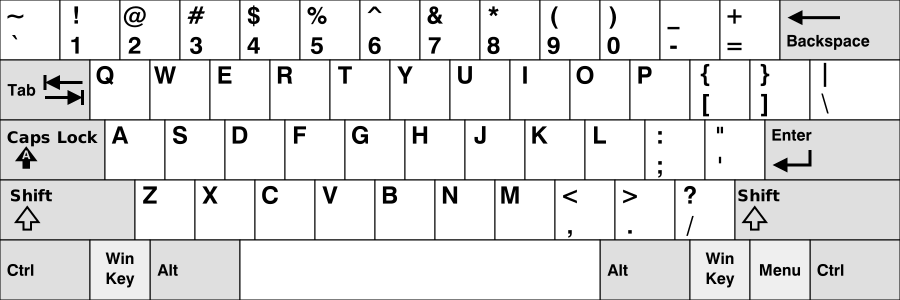
For reference, this is the standard United States-NoAltGr QWERTY keyboard layout
Note that some shortcuts, specifically ones that involve one or more modifier keys such as +, are known to not work on some non-QWERTY keyboard layouts. This is not a fault of RawTherapee.
- SETM = Single Editor Tab Mode (required for Filmstrip panel visibility)
- METM = Multiple Editor Tabs Mode
Cross Platform Shortcuts
| Where | Shortcut | Action |
|---|---|---|
| Anywhere | ^ Ctrl + F2 | Switch to the File Browser tab. |
| Anywhere | ^ Ctrl + F3 | Switch to the Queue tab. |
| Anywhere | ^ Ctrl + F4 | Switch to the Editor tab. |
| Anywhere | ^ Ctrl + c or ^ Ctrl + ⎀ Insert | Copy the processing profile. |
| Anywhere | ^ Ctrl + v or ⇧ Shift + ⎀ Insert | Paste the processing profile. |
| Anywhere | ^ Ctrl + ⇧ Shift + v | Partial-paste the processing profile. Pay attention to the processing profile fill mode! |
| Anywhere | ^ Ctrl + f | Activates “Find” functionality, allows to search the focused widget for some text. Use it in e.g. File Browser > Folders, or in Editor > Meta > Exif.
|
| Editor, File Browser | ⎇ Alt + e | Switch to Exposure tab. |
| Editor, File Browser | ⎇ Alt + d | Switch to Detail tab. |
| Editor, File Browser | ⎇ Alt + c | Switch to Color tab. |
| Editor, File Browser | ⎇ Alt + a | Switch to Advanced tab. |
| Editor, File Browser | ⎇ Alt + t | Switch to Transform tab. |
| Editor, File Browser | ⎇ Alt + r | Switch to Raw tab. |
| Editor | ⎇ Alt + m | Switch to Metadata tab. |
| Anywhere | F11 | Toggle fullscreen. |
| Anywhere | ^ Ctrl + q | Quit. |
| Editor | z | Zoom to 100%. |
| Editor | f | Zoom to crop. |
| Editor | ⎇ Alt + f | Zoom to fit whole image. |
| Editor | + or = | Zoom in. |
| Editor | - or _ | Zoom out. |
| Editor | 9 | Toggle background color of image preview: theme-based, black, middle grey, white. |
| Editor | < | Toggle clipped shadows indicator. |
| Editor | > | Toggle clipped highlights indicator. |
| Editor | ⇧ Shift + b | Before/After view. |
| Editor | c | Crop tool. |
| Editor | ⇧ Shift+left-click-drag | Pan the cropped area. Perform this inside the cropped area. |
| Editor | ⇧ Shift+left-click-drag | Proportionally scale the crop when “lock ratio” is disabled, allows resizing crop by a custom ratio. Perform this on a crop corner or edge. |
| Editor | ^ Ctrl + e | Edit current image in external editor. |
| Editor | ^ Ctrl + s | Save current image. |
| Save Window | ^ Ctrl + ⌅ Enter | “OK” to save. |
| Editor | ^ Ctrl + ⇧ Shift + s | Force saving current settings to the processing profile. This happens automatically each time you close the image or RawTherapee, but you can also force it to happen immediately so you don’t lose any work should the program crash. |
| Editor | ^ Ctrl + z | Undo. |
| Editor | ^ Ctrl + ⇧ Shift + z | Redo. |
| Editor | h | Hand/cross tool (standard); use this to navigate around a zoomed image or to move the frame that defines where the detail window is. |
| Editor | i | Toggle quick info (Exif info overlay). |
| Editor | Right-click in the preview area | Return to default cursor (after having used the pipette for white balance or the straightening tool).If the RGB indicator bar is enabled, this (un)freezes its indicators. |
| Editor | s | Select straight line (Rotate tool). |
| Editor | ⎇ Alt + s | Add a snapshot. |
| Editor | w | Spot white balance pipette. |
| Editor | r |  Toggle preview mode - red. Toggle preview mode - red. |
| Editor | g |  Toggle preview mode - green. Toggle preview mode - green. |
| Editor | b |  Toggle preview mode - blue. Toggle preview mode - blue. |
| Editor | v |  Toggle preview mode - luminosity. Toggle preview mode - luminosity. |
| Editor | ⇧ Shift + f |  Toggle preview mode - focus mask. Toggle preview mode - focus mask. |
| Editor | [ | Rotate open image left. |
| Editor | ] | Rotate open image right. |
| Editor | - | Decrease preview size. |
| Editor | + | Increase preview size. |
| File Browser | [ | Rotate selected thumbnail left. |
| File Browser | ] | Rotate selected thumbnail right. |
| Filmstrip (SETM) | ⎇ Alt + [ | Rotate selected thumbnail left. |
| Filmstrip (SETM) | ⎇ Alt + ] | Rotate selected thumbnail right. |
| Filmstrip (SETM) | ⎇ Alt + - | Decrease thumbnail size. |
| Filmstrip (SETM) | ⎇ Alt + + | Increase thumbnail size. |
| File Browser | - | Decrease thumbnail size. |
| File Browser | + | Increase thumbnail size. |
| File Browser | i | Toggle thumbnail information. |
| Filmstrip (SETM) | ⎇ Alt + i | Toggle thumbnail information. |
| Editor (METM) | ^ Ctrl + w | Close current image tab. |
| Editor (SETM) | F3 | Navigate to the previous image relative to the thumbnail selected in the File Browser/Filmstrip. |
| Editor (SETM) | ⇧ Shift + F3 | Navigate to the previous image relative to the image open in the Editor. |
| Editor (SETM) | F4 | Navigate to the next image relative to the thumbnail selected in the File Browser/Filmstrip. |
| Editor (SETM) | ⇧ Shift + F4 | Navigate to the next image relative to the image open in the Editor. |
| Filmstrip (SETM) | x | Synchronize the Filmstrip with the Editor to reveal and focus the thumbnail of the currently open image and clear active filters (rating, labels, metadata filters). |
| Filmstrip (SETM) | y | Synchronize the Filmstrip with the Editor to reveal and focus the thumbnail of the currently open image, but without clearing filters in File Browser/Filmstrip.(Note that the thumbnail of the open file will not be shown if filtered out). |
| File Browser/Filmstrip (SETM) | ⎋ Esc | Resets Browse Path box to current directory.Clears Find box.Does not defocus. |
| File Browser/Filmstrip (SETM) | ⇧ Shift + ⎋ Esc | Resets Browse Path box to current directory.Does not clear Find box.Defocuses. |
| File Browser/Filmstrip (SETM) | ^ Ctrl + o | Sets focus to Browse Path box, selects contents.Browse Path shortcuts:Press ⌅ Enter to refresh,Press ^ Ctrl+⌅ Enter to reload. |
| File Browser/Filmstrip (SETM) | ⇧ Shift + 1 through 5 | Rank selected thumbnails with 1-5 stars: |
| File Browser/Filmstrip (SETM) | ⇧ Shift + 0 | Un-rank selected thumbnails. |
| File Browser/Filmstrip (SETM) | ⇧ Shift + ^ Ctrl + 1 through 5 | Apply a color label to the selected thumbnails:
|
| File Browser/Filmstrip (SETM) | ⇧ Shift + ^ Ctrl + 0 | Remove color label from the selected thumbnails. |
| File Browser/Filmstrip (SETM) | 0 | Toggle filter for images without a rating.^ Ctrl allows to apply an additive filter. |
| File Browser/Filmstrip (SETM) | 1 through 5 | Toggle filter for images with a specific rating. ^ Ctrl allows to apply an additive filter. |
| File Browser/Filmstrip (SETM) | 6 | Toggle filter for not edited images. ^ Ctrl allows to apply an additive filter. |
| File Browser/Filmstrip (SETM) | 7 | Toggle filter for edited images. ^ Ctrl allows to apply an additive filter. |
| File Browser/Filmstrip (SETM) | ⎇ Alt + 0 | Toggle filter for images without a color label. ^ Ctrl allows to apply an additive filter. |
| File Browser/Filmstrip (SETM) | ⎇ Alt + 1 through 5 | Toggle filter for images with a specific color label. ^ Ctrl allows to apply an additive filter. |
| File Browser/Filmstrip (SETM) | ⎇ Alt + 6 | Toggle filter for images that were not saved. ^ Ctrl allows to apply an additive filter. |
| File Browser/Filmstrip (SETM) | ⎇ Alt + 7 | Toggle filter for images that were saved. ^ Ctrl allows to apply an additive filter. |
| File Browser/Filmstrip (SETM) | d | Clear all filters: ratings, color labels, (not)edited, (not)saved, trash. |
| File Browser/Filmstrip (SETM) | F2 | Rename file. If multiple thumbnails are selected, the rename dialog will be called for each. |
| File Browser/Filmstrip (SETM) | ^ Ctrl + t | Show trash contents. Was just t prior version 4.2.10. |
| File Browser, Editor | l | Toggle left panel visibility. |
| File Browser, Editor | ⎇ Alt + l | Toggle right panel visibility. |
| Filmstrip | Shit + l | Toggle Filmstrip visibility. |
| Filmstrip | t | Toggle the visiblity of the Filmstrip’s toolbar and automatically resize the height of the filmstrip. |
| Filmstrip | ⇧ Shift + t | Toggle the visiblity of the Filmstrip’s toolbar but do not automatically resize the height of the filmstrip. |
| Editor (SETM) | ^ Ctrl + ⇧ Shift + l | Toggle left panel and Filmstrip visibility. |
| Editor (SETM) | ⎇ Alt + ⇧ Shift + l | Toggle right panel and Filmstrip visibility. |
| File Browser, Editor | ^ Ctrl + ⎇ Alt + l | Toggle left and right panel visibility. |
| Editor | ^ Ctrl + ⇧ Shift + ⎇ Alt + l | Toggle left panel, right panel and Filmstrip visibility. |
| File Browser, Editor | m | Toggle all panels’ visibility (maximize preview area). |
| File Browser, Editor | ^ Ctrl + b | Add current image to the Batch Queue. |
| File Browser | ← ↑ → ↓ | Navigate through displayed thumbnails. |
| File Browser | ⇧ Shift + ← ↑ → ↓ | Change the selected range of thumbnails. |
| Tool Panel | ^ Ctrl + (Ctrl-click on slider’s reset button) | The slider is reset to the value it had when the image was loaded in the Editor, or when the image was selected in the File Browser. |
| Tool Panel | ^ Ctrl + drag a curve point | Makes the point move slower than the mouse cursor, allowing finer adjustments to the curve. |
| Tool Panel | ⇧ Shift + drag a curve point | The point is snapped to key positions (highlighted in red). |
| Tool Panel | Right-click on a tool’s name | Unfolds clicked section and folds all others. |
| Queue | ^ Ctrl + s | Start/stop the queue. |

 Red
Red Yellow
 Green
Green Blue
Blue Purple
Windows Only Shortcuts
| Where | Shortcut | Action |
|---|---|---|
| File Browser, Editor | F5 | Open resulting image in the default image viewer (must have been processed before). Uses current queue settings to determine output file path. |
| File Browser, Editor | ^ Ctrl + F5 | Open Explorer in the raw’s directory and select current image. |
| File Browser, Editor | ⇧ Shift + F5 | Open Explorer in the Batch Queue’s output directory and selects the current image if already converted. |
| Editor | Right-Alt | Temporarily enables both shadow and highlight clipping indicators while the preview is being re-drawn (e.g. while adjusting exposure compensation). |
Last modified: February 20, 2026 (commit 21cf575)