Lab Adjustments
Lab (also called CIELAB or L*a*b) is a three dimensional color space designed to approximate human vision, as opposed to the RGB color space which models the output of physical devices rather than human visual perception. It keeps the tone (also called lightness or value) separate from the color, so that you can adjust one without changing the other.
- The L component closely matches human perception of lightness.
- The a component defines how green/magenta the color is.
- The b component defines how yellow/blue the color is.
Lightness
When using the Lightness slider in the Lab section, a tone curve is applied to the L-channel of the Lab color space. As with the brightness slider in the Exposure section above, the black point and the white point do not move.
Contrast
The contrast slider in Lab increases or decreases the contrast of the photo, again applied to the L-channel. In developer’s terms: this slider applies a contrast curve centered at the average lightness level. Tonalities above the average are lifted (lowered), while tonalities below the average are lowered (lifted).
Chromaticity
The Lab Chromaticity slider increases or decreases the chromaticity of the image, by applying a contrast curve to the a- and b-channels of Lab space. Setting this slider to -100 removes all color, making the image black and white. The best way to convert an image to black-and-white is by using the dedicated and powerful Black-and-White tool in the Color tab.
B&W Toning
The “B&W toning” checkbox is deprecated from version 4.0.12 and is replaced by the Black-and-White tool located in the Color tab. For backwards compatibility, when opening processing profiles where “B&W toning” was used, the Chromaticity slider will get automatically set to -100, providing the same effect.
Avoid Color Shift
Fits the colors of the image into the gamut of the working color space and applies Munsell correction to retain color purity.
Restrict LC to Red and Skin Tones
When enabled, it restricts the effects of the Lightness According to Chromaticity (LC) curve, so that you can make skin fairer (by increasing the lightness of the skin) without affecting the model’s clothing or background.
Red and Skin Tones Protection
When enabled, the effects of the Chromaticity slider and the CC curve will not be applied to skin colors, so that you can increase the chromaticity of your photo without causing skin to appear oversaturated.
Curves
Lab Adjustments provides a wealth of curves to alter the look of the image. Below are illustrated explanations of each curve.
L Curve
 The L curve allows to control output
lightness based on the input lightness, L=f(L). The histogram on the L
curve reflects lightness after the Lab adjustments. This curve allows
you to control the lightness without affecting color.
The L curve allows to control output
lightness based on the input lightness, L=f(L). The histogram on the L
curve reflects lightness after the Lab adjustments. This curve allows
you to control the lightness without affecting color.
An S-shaped curve applied to the L channel increases image contrast. At the same time this leads to a perceptually desaturated look. Chromaticity adjustments can be used to compensate for this effect.
“a” and “b” Curves
The “a” and “b” curves allow to control output “a” and “b” channels based on the input “a” and “b” channels respectively, a=f(a) and b=f(b).
As indicated by the color bars, the “a” curve allows one to shift colors between green and magenta, and the “b” curve to shift between blue and yellow. This can be used to apply color toning effects.
Black-and-White Color Toning
Color-toning a black-and-white image can be done using one of two methods: the recommended and most intuitive method is by using the Color Toning tool along with the Black-and-White tool. The other, less powerful method is using the a* and b* curves of the L*a*b* Adjustments tool once the image is desaturated. The reason we still describe how to do it without using the Black-and-White and Color Toning tools is that these tools are relatively new additions to RawTherapee, and maybe you’re stuck using an older version which lacks these tools, or you’re just curious what your options are.
Read about color-toning a black-and-white image the recommended way on the Color Toning tool’s page; this section describes how to do it by using the a* and b* curves.
First you need to make the image black-and-white. Do this using any of
the available methods: either using the Black-and-White tool, or by
decreasing saturation in the Exposure tool, or by decreasing
chromaticity in the L*a*b* Adjustments tool. Each tool will lead to a
different effect since they work in different ways and in different
color-spaces. It’s just a matter of taste. Once the image is reduced to
grayscale you can give the image a tone by using the a* and b* curves.
To copy just color toning from one image to another, copy the current
processing profile to clipboard
 , then
partial-paste it either by right-clicking on a photo in the File
Browser and selecting “Processing Profile Operations > Paste -
partial”, or from the Image Editor tab by Ctrl+clicking on “Paste
profile from clipboard”
, then
partial-paste it either by right-clicking on a photo in the File
Browser and selecting “Processing Profile Operations > Paste -
partial”, or from the Image Editor tab by Ctrl+clicking on “Paste
profile from clipboard”
 to paste only the
L*a*b* Adjustments section of the profile. Note that other
adjustments in the L*a*b* Adjustments sections will be pasted as
well. Alternatively, the a* and b* curves can be copied and pasted
individually. This is another reason for using the recommended method,
because it’s easier, more precise, to copy and paste the Color Toning
and Black-and-White tools.
to paste only the
L*a*b* Adjustments section of the profile. Note that other
adjustments in the L*a*b* Adjustments sections will be pasted as
well. Alternatively, the a* and b* curves can be copied and pasted
individually. This is another reason for using the recommended method,
because it’s easier, more precise, to copy and paste the Color Toning
and Black-and-White tools.
LH Curve
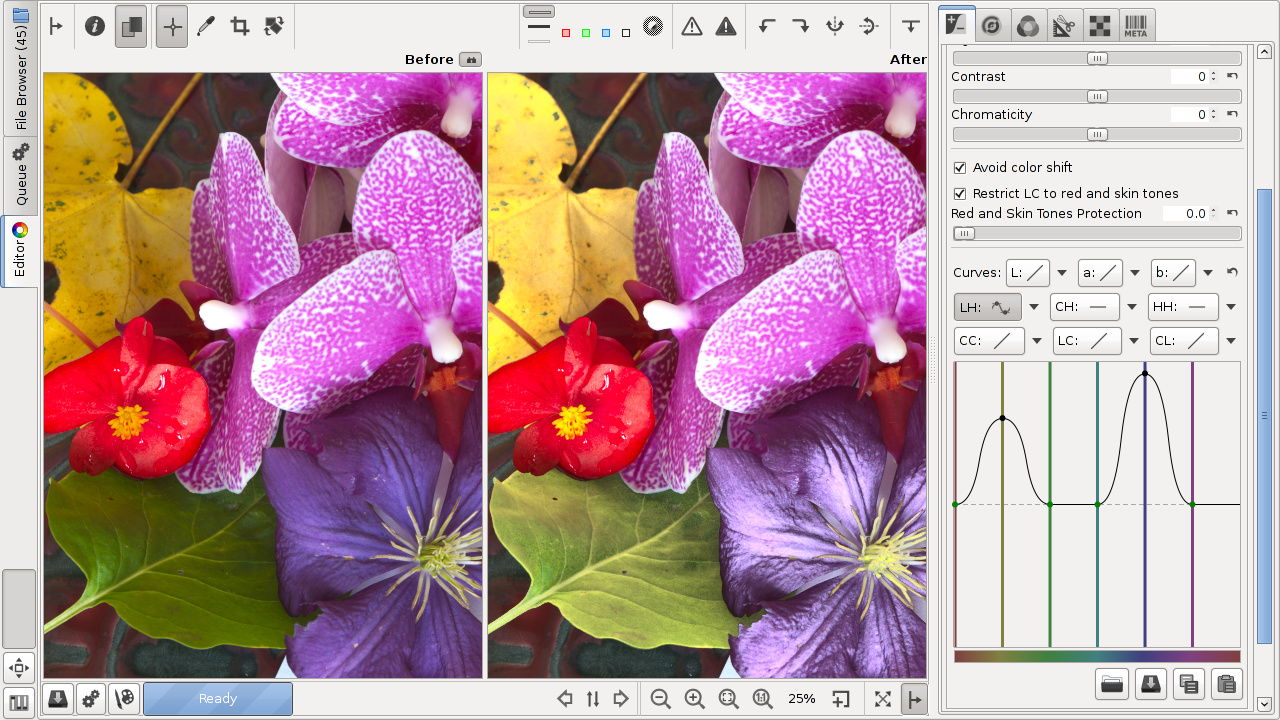 The LH curve (lightness according to
hue) allows to modify the lightness based on hue. To lighten the colors
of the particular hue, move the desired point on the LH curve up, and to
darken - down.
The LH curve (lightness according to
hue) allows to modify the lightness based on hue. To lighten the colors
of the particular hue, move the desired point on the LH curve up, and to
darken - down.
CH Curve
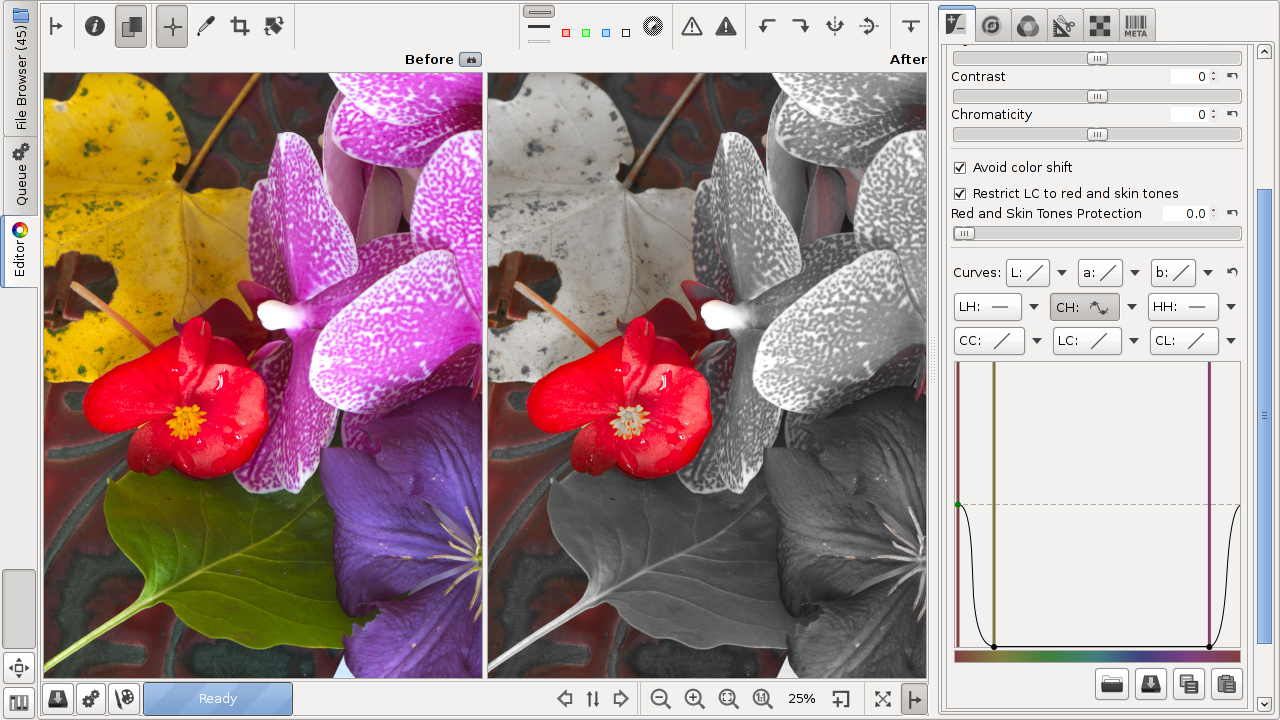 The CH curve (chromaticity
according to hue) allows to control output chromaticity based on the
input hue, C=f(H). Using it you can very easily boost or mute only a
selected range of colors.
The CH curve (chromaticity
according to hue) allows to control output chromaticity based on the
input hue, C=f(H). Using it you can very easily boost or mute only a
selected range of colors.
HH Curve
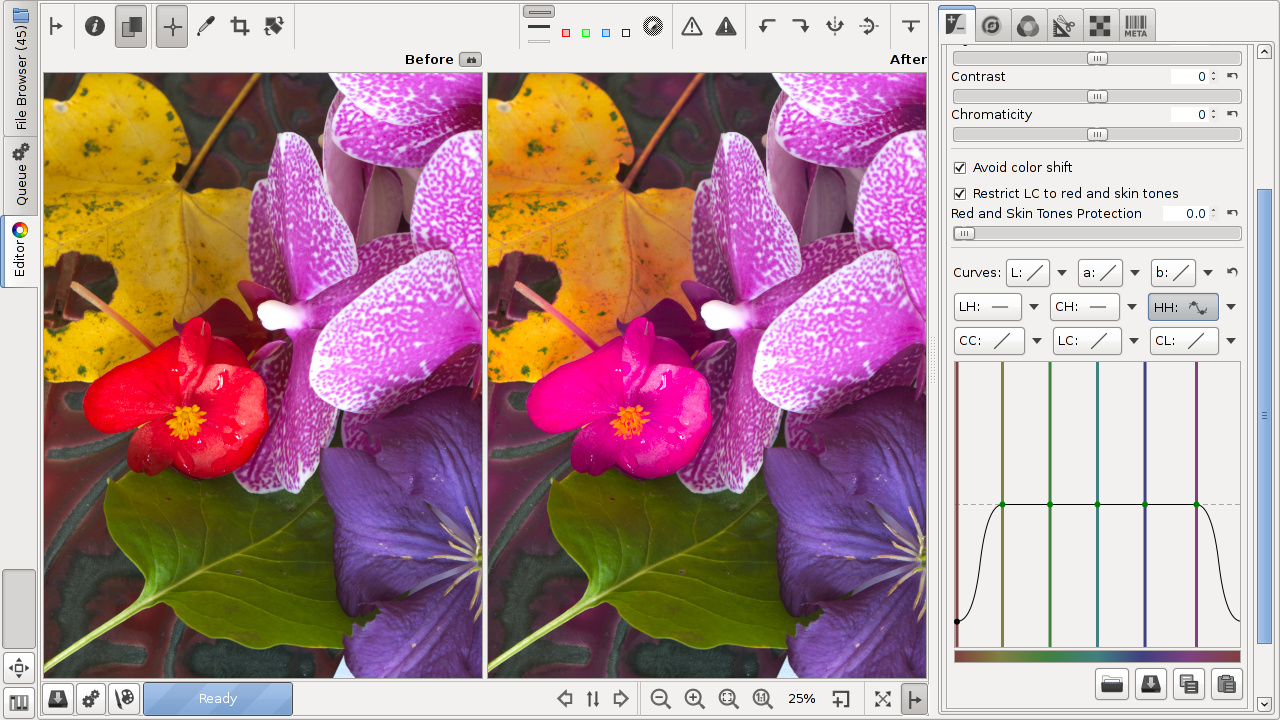 The HH curve (hue according to hue)
allows to alter the hue for a specified hue. For example, one could
shift reds to be more orange by moving the red point up until the thick
horizontal line that appears as the point is being dragged becomes the
color you desire. RawTherapee has two HH curves, one in the Lab tools in
the Exposure tab, and one in the HSV tool in the Colors tab. The HH
curve in the Lab tools has a more restricted range compared to the HH
curve in the HSV equalizer, to allow finer adjustments. The range is
between the previous and next color, e.g. green could be changed within
the range of yellow and blue (as you can see in the curve on the
screenshot above). This is useful, for example, for fine-tuning skin
tone appearance, removing a greenish pale look by shifting reds and
yellows a little towards magenta.
The HH curve (hue according to hue)
allows to alter the hue for a specified hue. For example, one could
shift reds to be more orange by moving the red point up until the thick
horizontal line that appears as the point is being dragged becomes the
color you desire. RawTherapee has two HH curves, one in the Lab tools in
the Exposure tab, and one in the HSV tool in the Colors tab. The HH
curve in the Lab tools has a more restricted range compared to the HH
curve in the HSV equalizer, to allow finer adjustments. The range is
between the previous and next color, e.g. green could be changed within
the range of yellow and blue (as you can see in the curve on the
screenshot above). This is useful, for example, for fine-tuning skin
tone appearance, removing a greenish pale look by shifting reds and
yellows a little towards magenta.
CC Curve
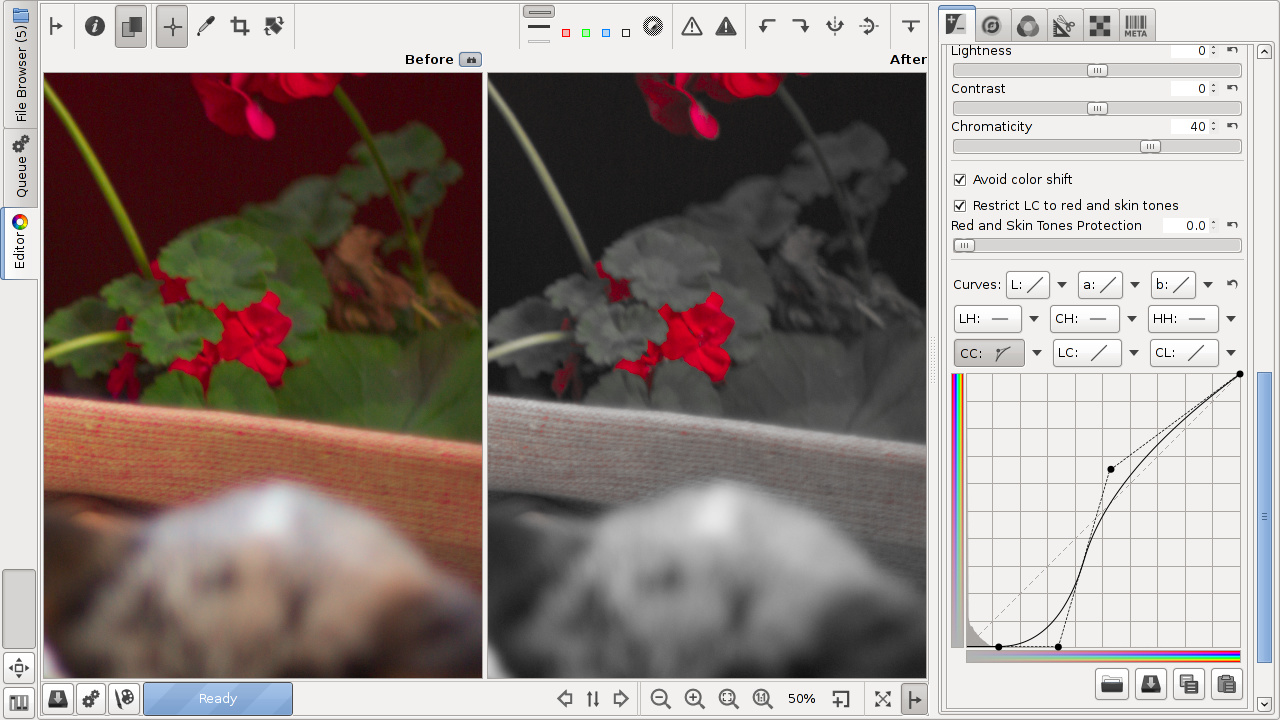
The CC curve (chromaticity according to chromaticity) allows to control output chromaticity based on the input chromaticity, C=f(C). The histogram on the CC curve reflects chromaticity before the adjustment. This allows you to separately adjust the chromaticity of pixels of low and high saturation, so you can boost saturation where needed without causing already saturated zones to clip.
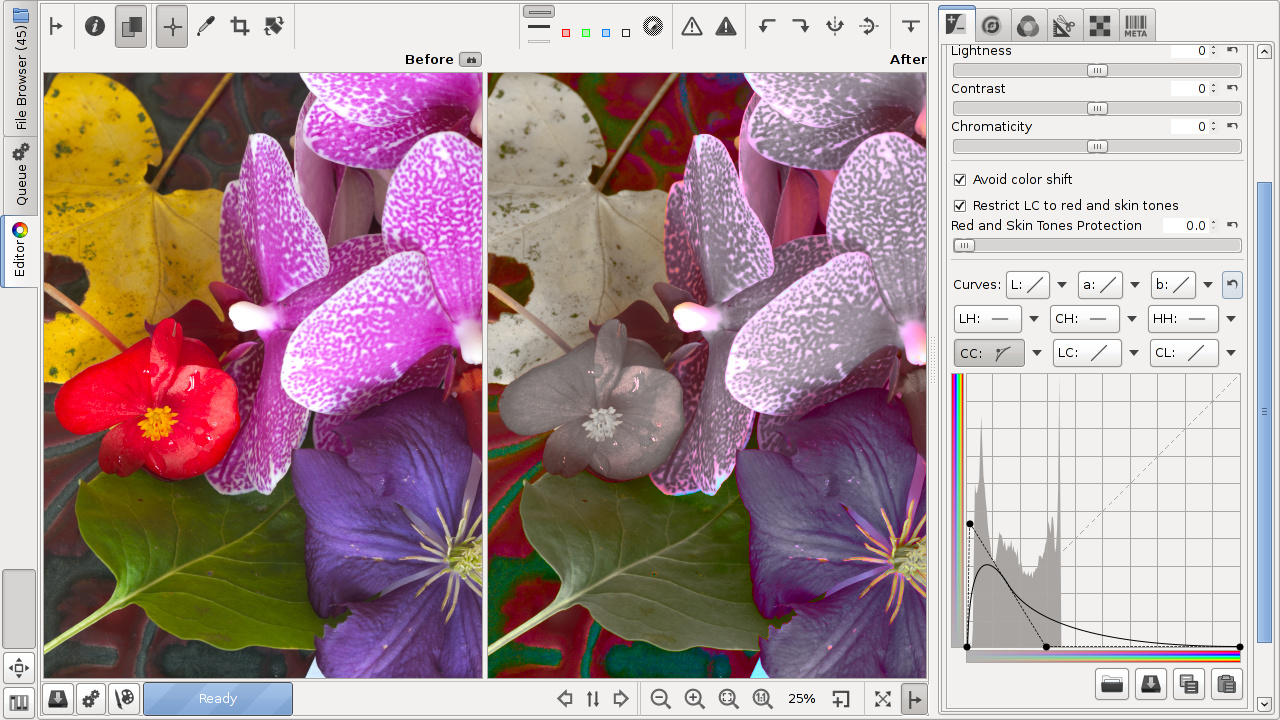 Boost low chromaticity, mute high chromaticity.
 Mute low chromaticity.
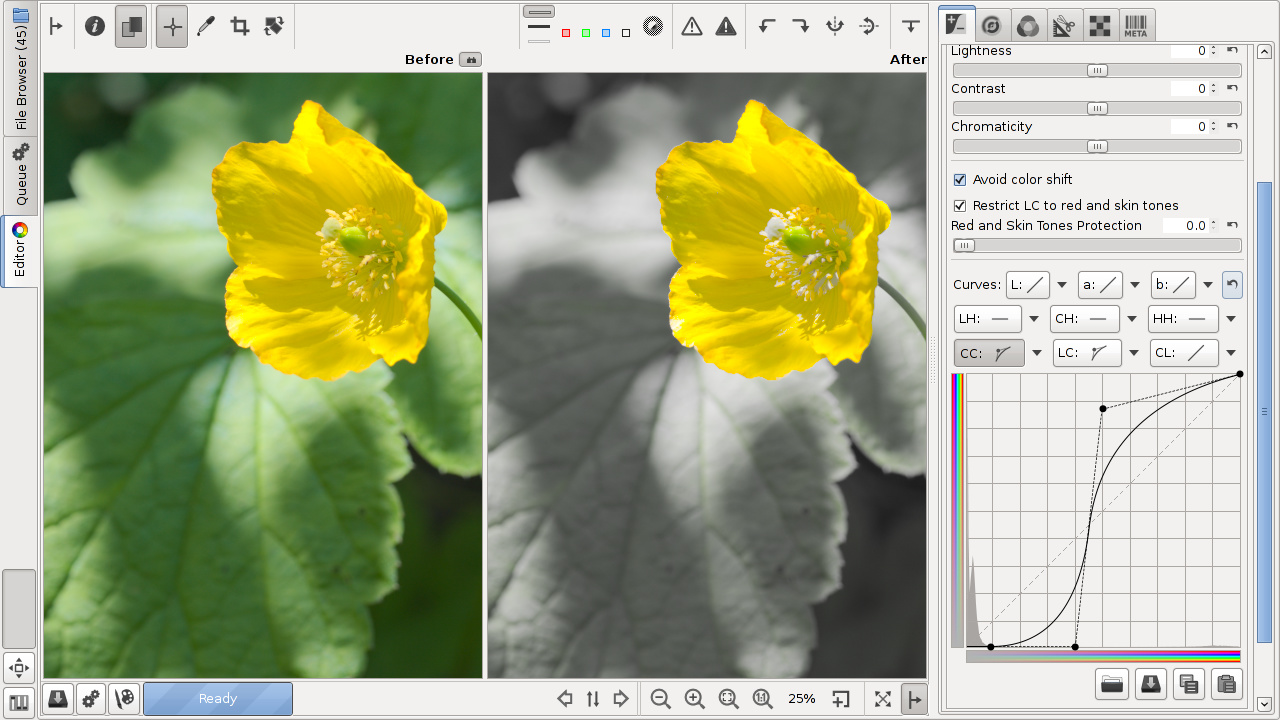 Mute low chromaticity.
You can use the Show/Hide chromaticity histogram button
 besides the histogram to help you see the effects of your CC curve
tweaks on the histogram, and to help you find the maximum value before
you start clipping colors.
besides the histogram to help you see the effects of your CC curve
tweaks on the histogram, and to help you find the maximum value before
you start clipping colors.
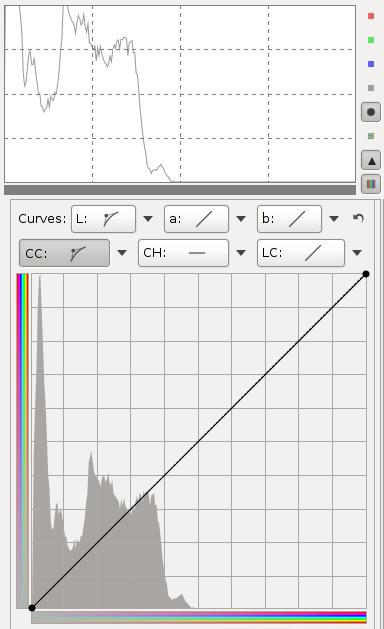 Smooth chromaticity histogram with neutral CC curve.
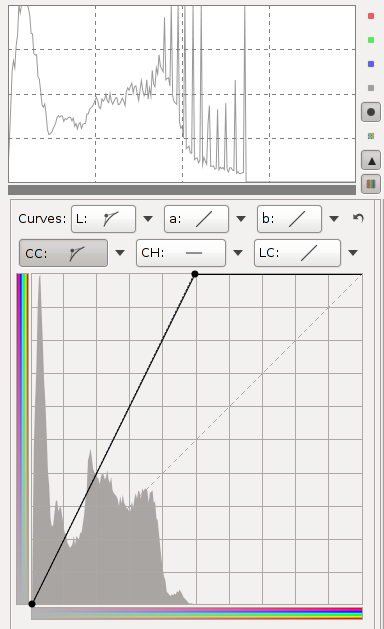 Spiked chromaticity histogram with too strong CC curve.
The screenshots show what the chromaticity histogram looks like for the untouched image, and then what happens when you increase chromaticity too much (you can do this using the Chromaticity slider, or, as in the screenshot, by sliding the top-right point of the CC curve to the left. Holding the Shift key while you slide the point will help you keep the point at the top).
To find the maximum chromaticity boost you can apply without causing nasty spikes, which will appear as sudden flat regions of color in the image, similar to posterization, all you need to do is click Show/Hide chromaticity histogram if you haven’t done so already, and then slowly boost chromaticity until you notice the histogram begins to spike. The curve does not have to be linear of course.
LC Curve
The LC curve (lightness according to chromaticity) allows to control the output lightness based on the input chromaticity, L=f(C). You can use it on portraits to lighten skin
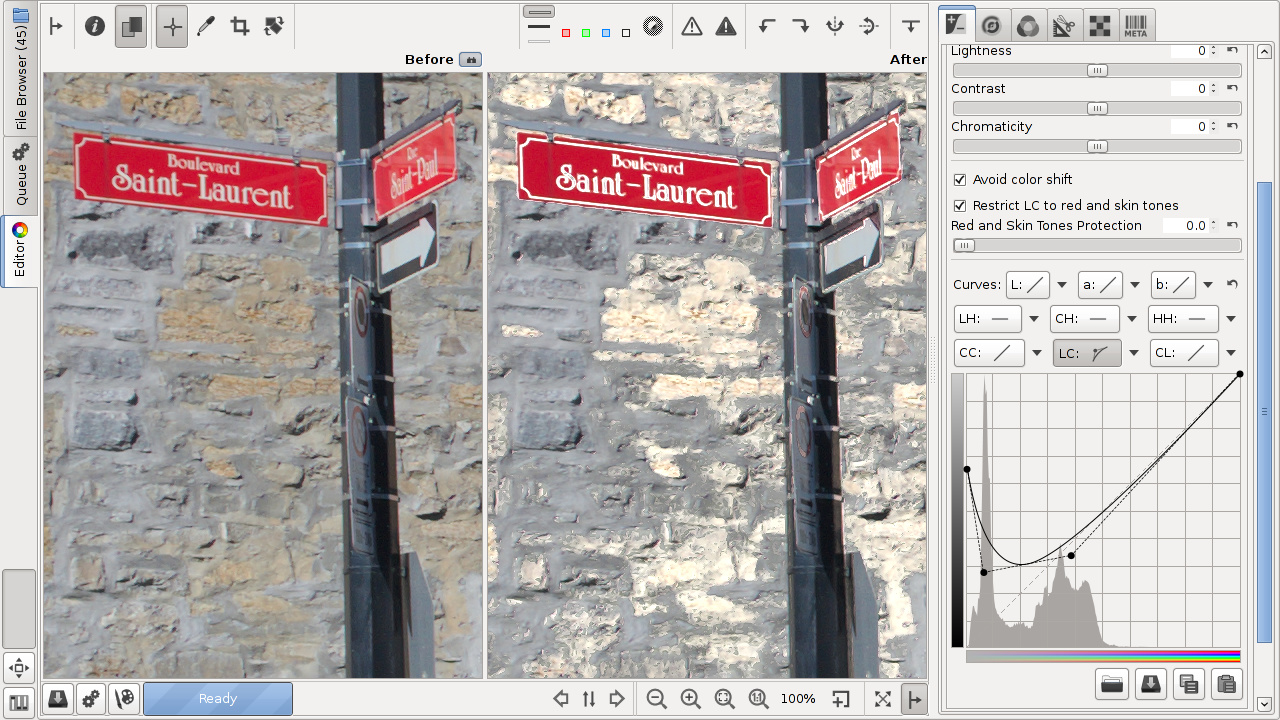 Lighten low-chromaticity zones.
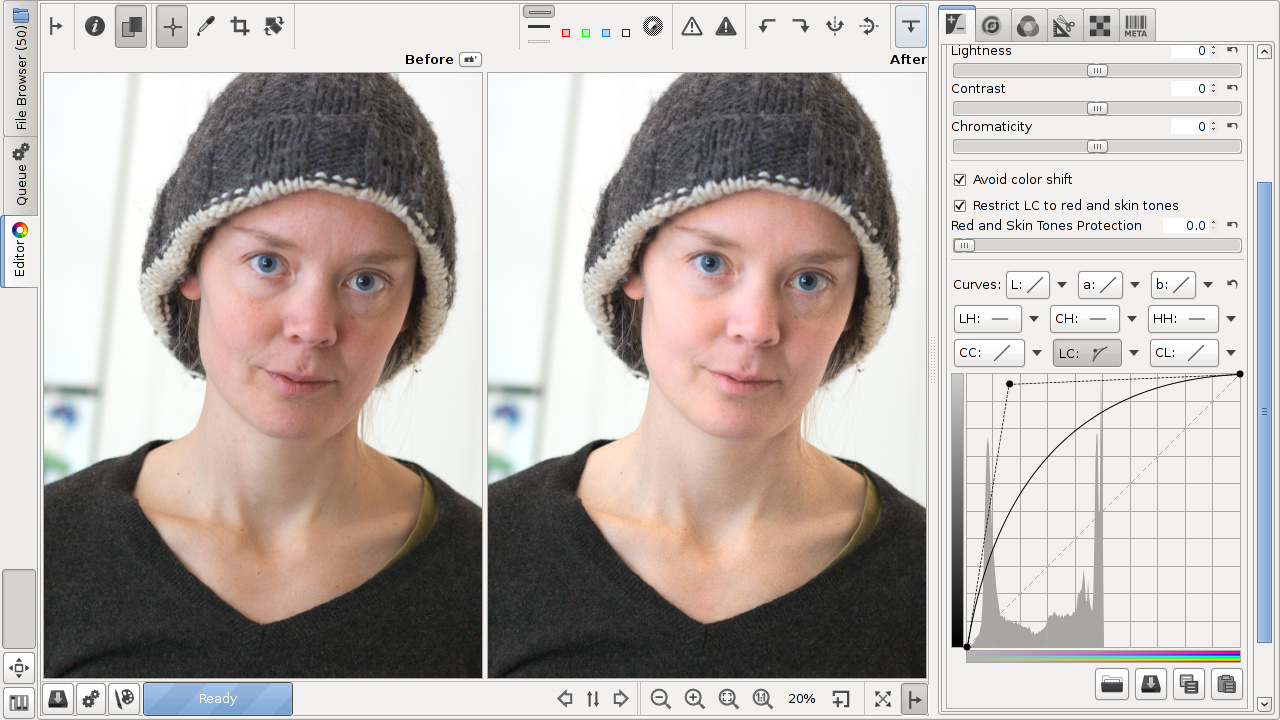 Lighten skin tones.
The LC curve’s action is modulated by the Restrict LC to red and skin tones checkbox. Thus the LC curve provides a complex image control, altering lightness based on image chromaticity and also targeting a specified range of hues. With this option enabled, the lightness of only red and skin tones is affected, for example allowing you to make skin fairer and conceal wrinkles and blemishes while preserving the color of the model’s clothes and background. When it is disabled, the LC curve acts on other colors as well.
The coloring of the bar on the horizontal LC curve axis changes to reflect which colors the curve applies to, as chosen by the state of the Restrict LC to red and skin tones checkbox.
CL Curve
The CL curve (chromaticity according to lightness) allows to control the output chromaticity based on the input lightness, C=f(L). It allows you to separately control the chromaticity of regions of the image based on their lightness, so you can for example decrease the chromaticity of shadows if they are noisy or for artistic purposes, or increase the chromaticity of dark and mid-tones without affecting the bright sky.

Increase chromaticity of light areas without saturating shadows.
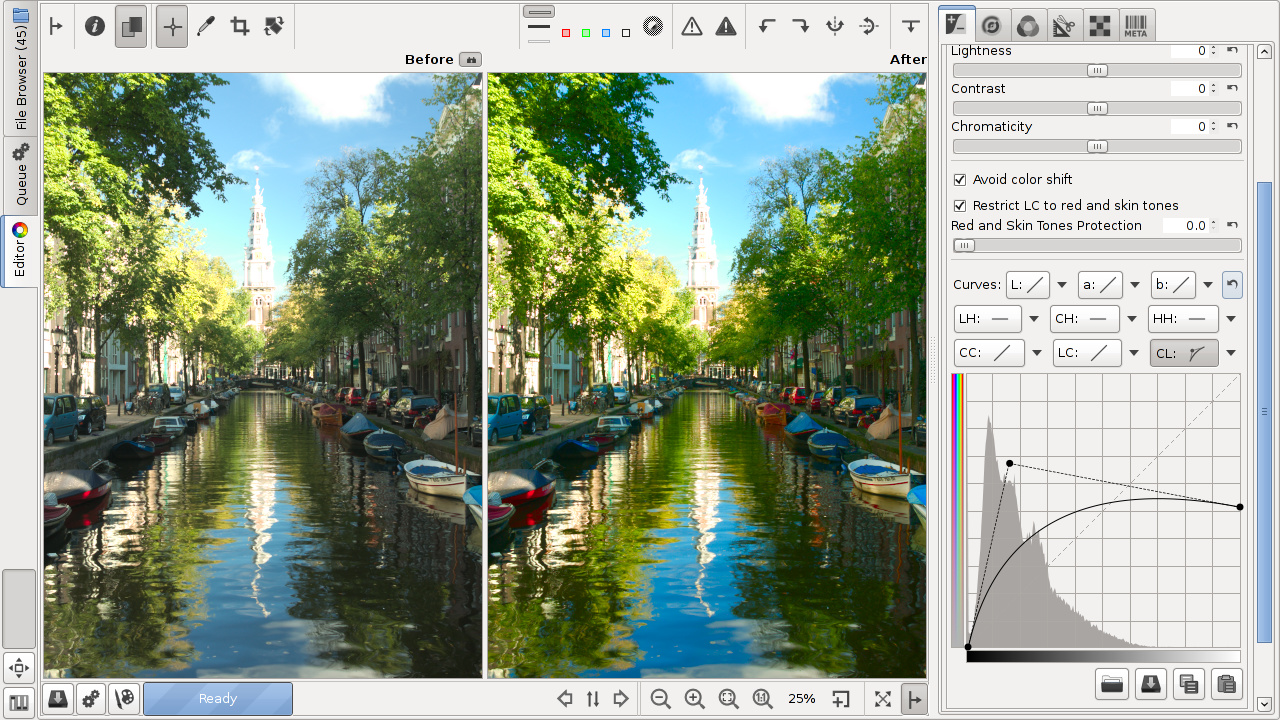 Chromaticity of dark and mid-tones increased without saturating the sky.