Preprocessing
There are several preprocessing settings and they are split into two parts in the user interface, both in the “Raw” tab: one part appears as the main “Preprocessing” tool, and the other part appears within the “Sensor with Bayer Matrix” tool. The preprocessing settings in the main “Preprocessing” group affect raw files of all types, while the ones in the “Sensor with Bayer Matrix” tool affect only raw files from cameras which use a bayer filter.
PDAF Lines Filter
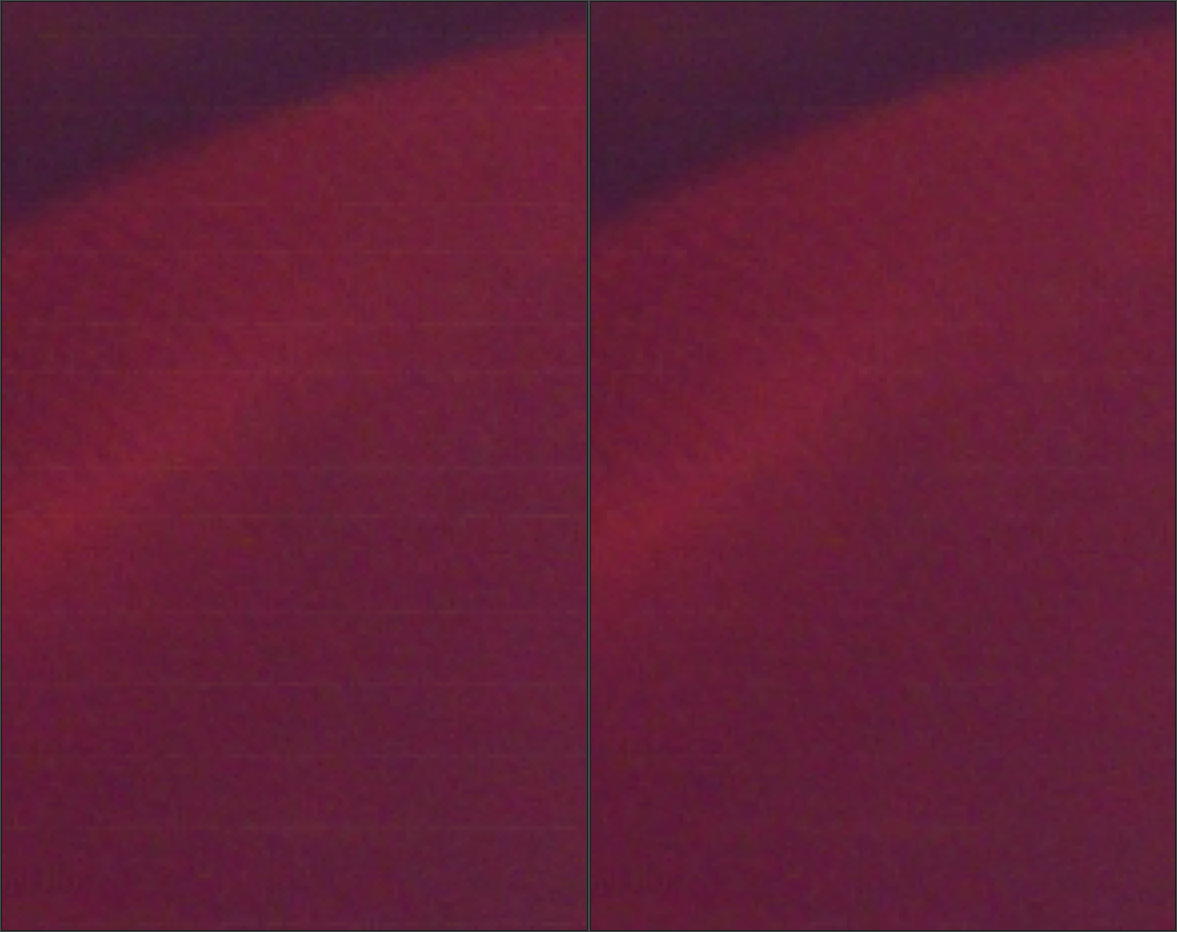
Cameras with Phase Detection Auto Focus (PDAF) are susceptible to producing line striping artifacts when photographing backlit scenes with visible flare. Some mirrorless interchangeable lens cameras from Sony are known to suffer from this.
Enable the PDAF lines filter to fix these PDAF line striping artifacts.
RawTherapee 5.5 can fix PDAF line artifacts for the following cameras:
- Sony DSC-RX1RM2
- Sony ILCE-6000
- Sony ILCE-6300
- Sony ILCE-6500
- Sony ILCE-7M3
- Sony ILCE-7RM2
- Sony ILCE-7RM3
- Sony ILCE-9
Line Noise Filter
Line noise appears as horizontal or vertical banding most visible in noisy images. It is caused by noise in the sensor electronics which read the value of each photosite row by row or column by column.
You can see examples of what line noise looks like at this MagicLantern forum post: http://www.magiclantern.fm/forum/index.php?topic=10111.msg105001#msg105001
Nikon PDAF Banding
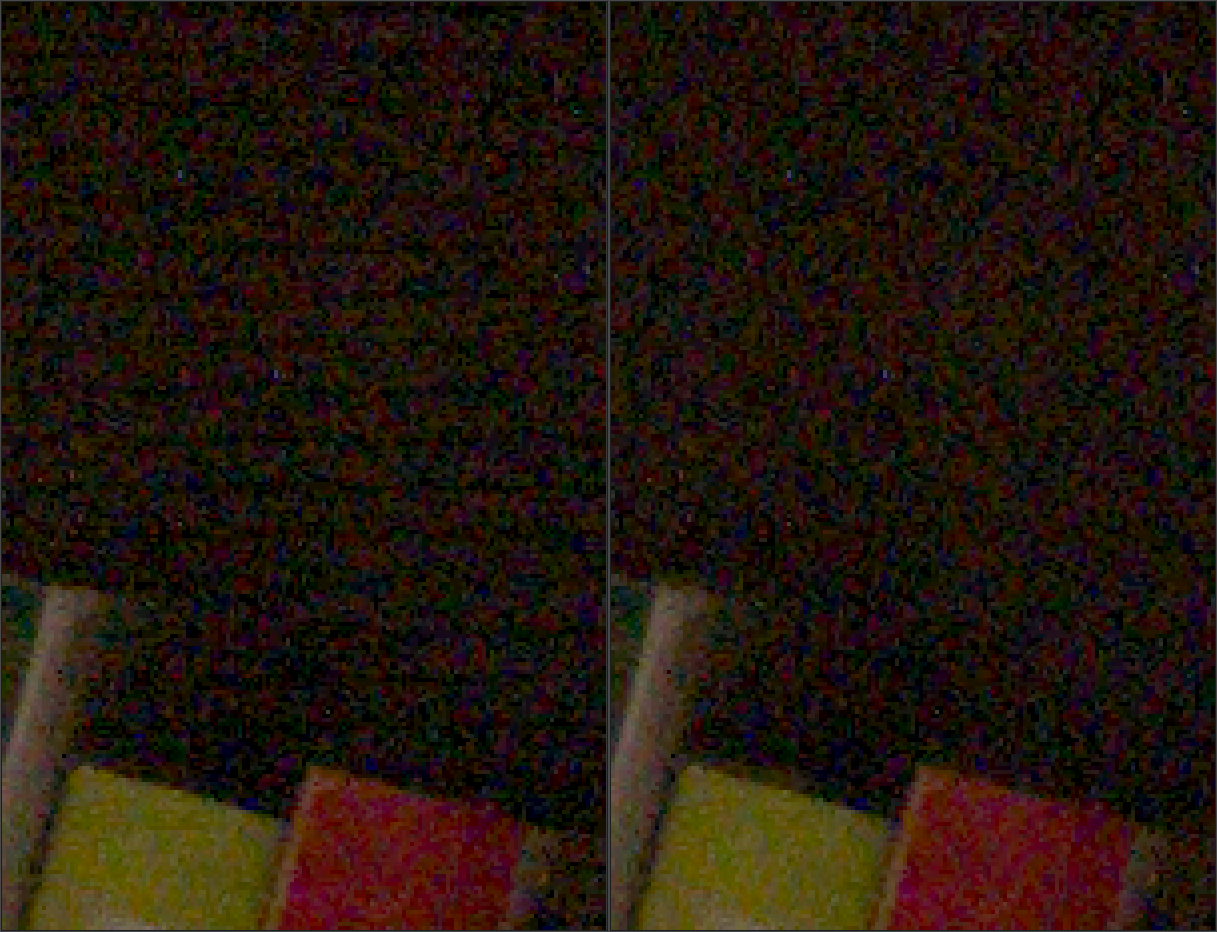
Several mirrorless interchangeable lens cameras from Nikon use Phase Detection Auto Focus (PDAF), and they perform in-camera filtering to mitigate the PDAF striping artifacts. However, the filtering performed seems excessive and leads to “PDAF banding” - darker lines in shadow areas.
Use the line noise filter to fix PDAF banding artifacts with the direction set to “Horizontal only on PDAF rows”.
RawTherapee 5.5 can fix Nikon PDAF banding artifacts for the following cameras:
- Nikon Z 6
- Nikon Z 7
The “PDAF lines filter” has no effect on Nikon PDAF banding.
Green Equilibration

Some cameras (for example Olympus, Panasonic, Canon 7D, and some medium format cameras) use slightly different green filters in the two green channels of the color filter array on the camera sensor. This is generally not a designed feature of the sensor, but rather a result of limitations in the manufacturing process when the color filters are applied to the sensor surface. One green filter may get a small pollution from the red filter and the other from the blue for example. Green equilibration suppresses interpolation artifacts that can result from using demosaic algorithms which assume identical response of the two green channels. The threshold sets the percentage difference below which neighboring green values are equilibrated.
Set the value high enough for the mazing to disappear but no higher. The DCB demosaicing algorithm is very sensitive to green split so it is good to use while trying to find the best value.
Green equiliberation can also be used to equalize green split caused by crosstalk. If you, for example via an adapter, use an analog ultra-wide angle lens with your digital camera the incoming light may arrive at such a low angle that some light passes through one color filter and gets registered in a neighboring pixel belonging to a different color channel - this is crosstalk. As one green channel has blue neighbors and the other red, the first will get crosstalk from blue and the other from red, hence they will separate which can cause mazing. Also red and blue channels will in such a situation suffer from crosstalk, but as they only receive from green there’s no separation in those channels. Mild crosstalk will not have any visible effect if green is equalized, while heavy crosstalk will show as desaturated dull colors (as the color channels have been mixed). Note that crosstalk generally doesn’t occur before heavy color cast, so in this case you will be using flatfield correction too.
Hot/Dead Pixel Filter
This tool suppresses hot and dead pixels by replacing them by a neighborhood average.
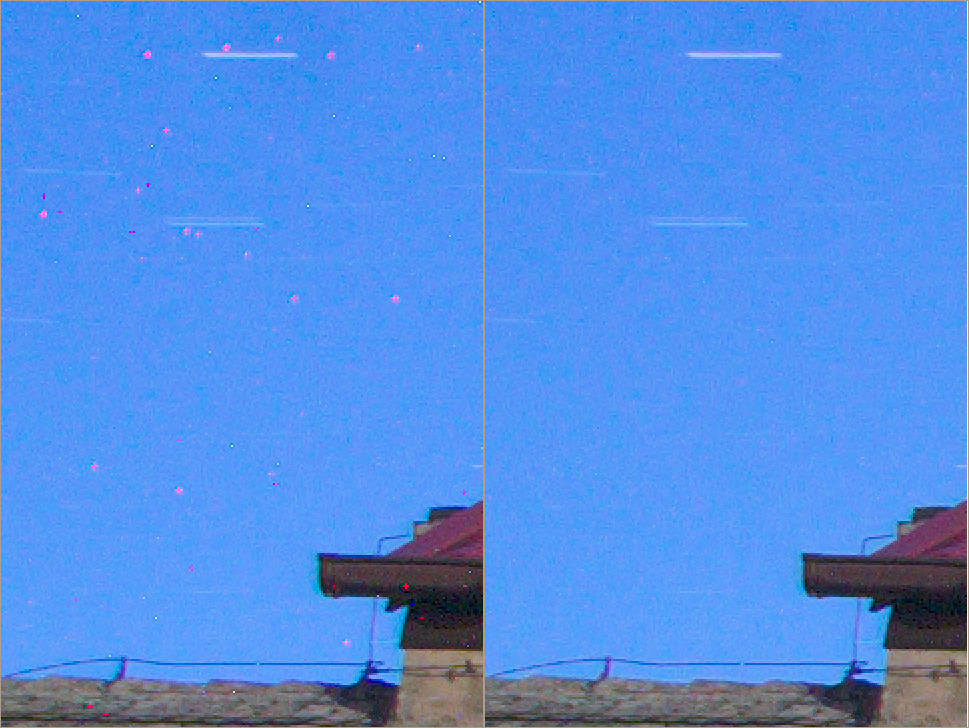
“Hot pixels” appear as bright and saturated tiny dots. Each one is the result of a photosite on the sensor outputting a higher current than it should. Whether a single photosite on the sensor corresponds to a single pixel in the processed photo depends on the chosen demosaicing method (and other tools); most methods, such as the default AMaZE, do not have a direct photosite:pixel relationship, and so hot pixels may appear not only as single-pixel dots but also as tiny 3x3 pixel crosses or slightly larger blobs. Hot pixels are a completely normal phenomenon present in all cameras, however in typical daylight photography you will not encounter them. The longer the exposure, the higher the chance of hot pixels appearing and the larger their number, with exposures longer than two seconds generally being regarded as prone to this problem. Heat is also a factor, hot sensors being more prone.
“Dead pixels” on the other hand appear as black dots (or crosses or blobs). They are the result of dead photosites on the sensor, and as such, exposure time does not have any influence on whether they appear or not - if a photosite is dead, every photo will have the dead pixel in the same spot. Because their position is static and always present when using the same camera body, you can fix them not only using the automatic “Dead pixel filter” but also by adding their coordinates to a .badpixels file; see Bad Pixels.
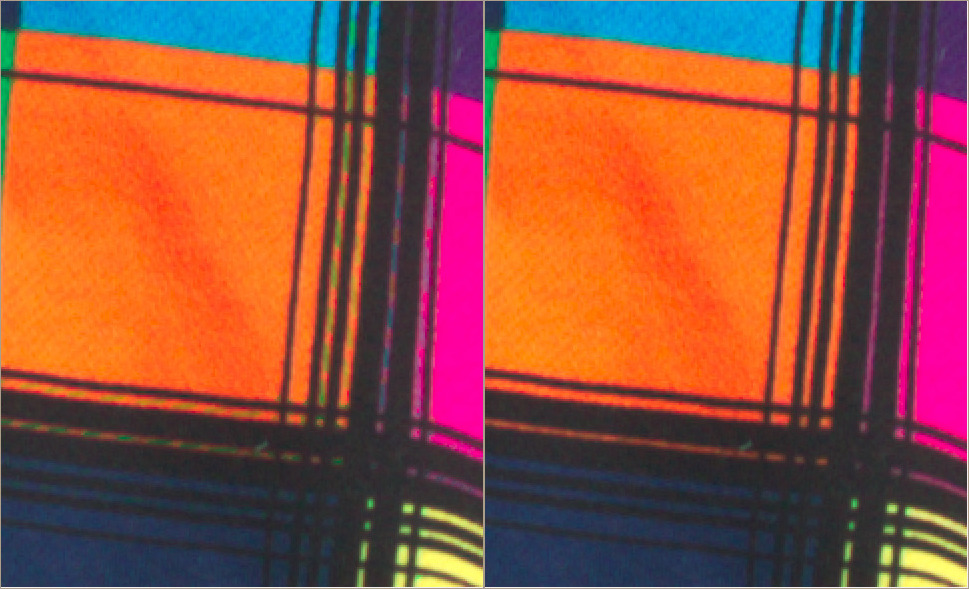 It is impossible to detect hot and
dead pixels with absolute certainty by analyzing only one photo (as
opposed to analyzing a whole series of photos), and as such one must
find the balance between adequate removal and
false positives.
The threshold slider allows you to set the sensitivity of the automatic
detection of hot and dead pixels. Lower values make hot/dead pixel
detection more aggressive, but false positives may lead to artifacts. If
you notice any artifacts appearing when enabling the Hot/Dead Pixel
Filters, gradually increase the threshold value until they disappear.
It is impossible to detect hot and
dead pixels with absolute certainty by analyzing only one photo (as
opposed to analyzing a whole series of photos), and as such one must
find the balance between adequate removal and
false positives.
The threshold slider allows you to set the sensitivity of the automatic
detection of hot and dead pixels. Lower values make hot/dead pixel
detection more aggressive, but false positives may lead to artifacts. If
you notice any artifacts appearing when enabling the Hot/Dead Pixel
Filters, gradually increase the threshold value until they disappear.